

Overview of Aurora
Welcome to Aurora — describe what you want to build, and Aurora’s AI will create it for you in real time.Create a Project
Go from idea to running app in seconds
Build & Iterate
Chat, preview, and refine your project
Share & Deploy
Share your project or publish to the community
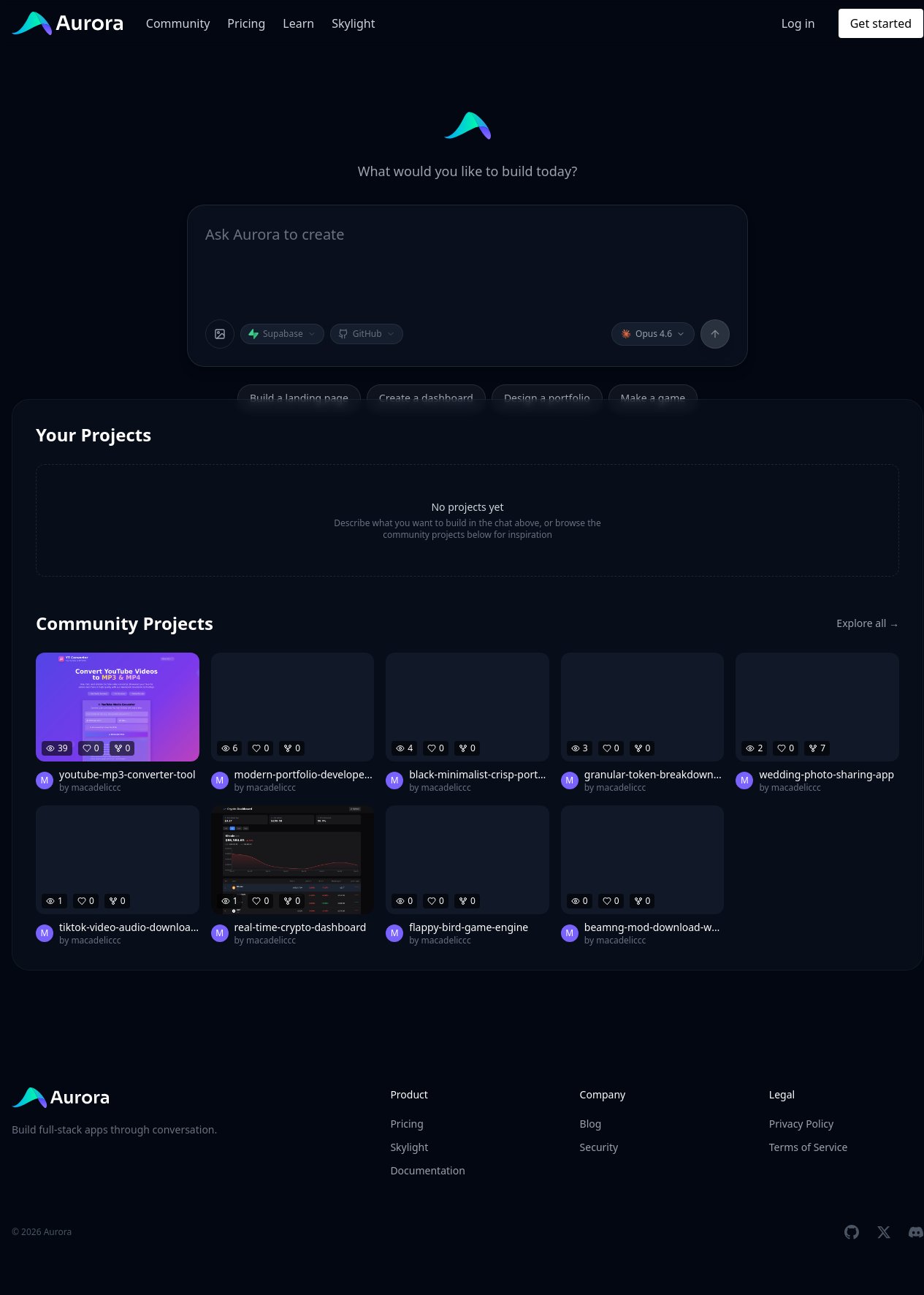
Create Your First Project
To start a new project, just describe what you want to build in the chat input on your dashboard. Aurora will generate your initial application and drop you into the project editor. You can also start from existing work:- Import a GitHub repository. Click Import on the dashboard to bring in an existing Vite + React repository, including projects built on Lovable. The import changes almost nothing in your repository, and chat edits commit back to it. Connect GitHub in Settings first.
- Remix a community project. Browse community projects and remix one as a starting point.
Building Your App
The project editor is where you build and refine your application. It has two main panels: the chat on the left and the preview on the right.Using the chat interface
Using the chat interface
Describe features, request changes, or ask questions in plain language. Aurora understands context from your conversation and builds accordingly. You can attach images (JPEG, PNG, GIF, or WebP) to show what you want, or attach a reference URL and Aurora will fetch and read the page.
Live preview
Live preview
The preview panel shows your running app and updates in real time as Aurora makes changes. You can switch between desktop, tablet, and mobile viewports to test responsiveness.
Making changes
Making changes
Ask Aurora to modify anything — add pages, change layouts, update styles, or fix bugs. Aurora updates your app while preserving what you’ve already built.
Code view
Code view
Switch to code view to browse your project’s files and see the generated source code directly.
Version history
Version history
Aurora creates a commit each time it makes changes. You can view your commit history and restore any previous version from within the editor. The newest commit is what your preview is already running, so it does not show a Restore button.
Adding integrations
Adding integrations
Connect services like Supabase for databases, or ask Aurora to integrate third-party APIs — just describe what you need.
Sharing and Deploying
Publishing to the community
Publishing to the community
Publish your project to the Aurora community for others to discover and remix.
GitHub sync
GitHub sync
Connect your GitHub account to push your project code to a repository. Aurora commits appear as
aurora-build[bot] so you can tell which changes were AI-authored.Project Settings
Environment variables
Environment variables
Open the secrets menu in your project settings to add API keys and other sensitive values. After adding a secret, click apply to reload your project with the new variable. In browser code, only variables with the
VITE_ prefix are available, through import.meta.env.VITE_YOUR_KEY. Keep private keys unprefixed and read them in server code with process.env.YOUR_KEY. See Secrets for details.Custom domains
Custom domains
Connect your own domain name to your Aurora project (Pro plan).
Custom instructions
Custom instructions
Add project-specific instructions to guide how Aurora builds your app — like preferred styling, libraries, or coding patterns.
Deleting a project
Deleting a project
Permanently delete projects you no longer need from the project settings menu.